
Import from Dropbox
If your brand files already live in Dropbox, you can bring them straight into the Library without downloading anything. You pick folders, Cauldron shows you exactly what will happen, and then it copies the files for you. Your folders become Collections, Dropbox tags can come along, and every file lands as a draft.
The import copies. It never moves, changes, or deletes anything in your Dropbox.
Who can use it
Section titled “Who can use it”Anyone who can add files to a brand can import into it from their own Dropbox: a Creator or Brand manager on that brand, or a studio owner or admin.
- Viewers and Approvers see a note on the brand’s Integrations tab: “You need Creator access on brand to import here.” Ask a brand manager.
- Guests don’t get Dropbox import, whatever their role on a brand.
Connect your Dropbox
Section titled “Connect your Dropbox”A connection belongs to one person. Each teammate connects their own Dropbox, and nobody else can import from yours. Once you’re connected, it works in every brand where you can add files.
You can connect from two places:
- The Library. Click Import in the toolbar and choose From Dropbox.
- A brand’s Integrations tab. Open the brand, go to Integrations, and click Connect Dropbox under Sources · Into the Library.
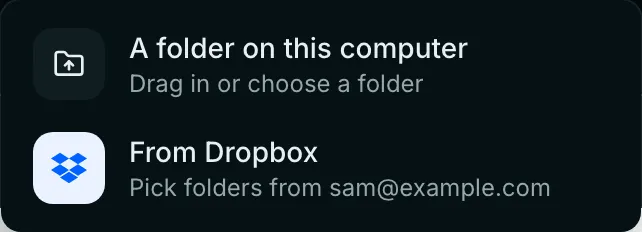
Either way, click Connect Dropbox. Dropbox opens and asks you to approve read-only access. Approve it, and you come straight back to where you started.
What the connection allows:
| Cauldron can | List your folders and files, and copy the files you choose |
| Cauldron can’t | Change, move, rename, or delete anything in your Dropbox |
| Who uses it | Only you. Teammates connect their own |
Studio owners and admins can see who has connected under Settings → Integrations. They can’t use or disconnect someone else’s Dropbox.
The main path
Section titled “The main path”- In the Library, click Import, then From Dropbox.
- Choose folders. Open folders to look inside, tick the ones you want, then click Count and preview.
- Counting your folders. Cauldron counts the folders you ticked. A small pick takes seconds, and the preview opens by itself.
- Preview the import. Pick the brand, check where files will land, and settle tags and duplicates. Nothing has been copied yet.
- Click Import n files.
- Importing. Watch progress, or close the window. The import keeps going.
- Done. Click Review drafts in Library to see what landed.
The sections below cover each step.
Choose folders
Section titled “Choose folders”The first step lists the top level of your Dropbox straight away. Nothing is scanned or counted when the window opens: you open folders to look inside, and tick the ones you want at any depth.
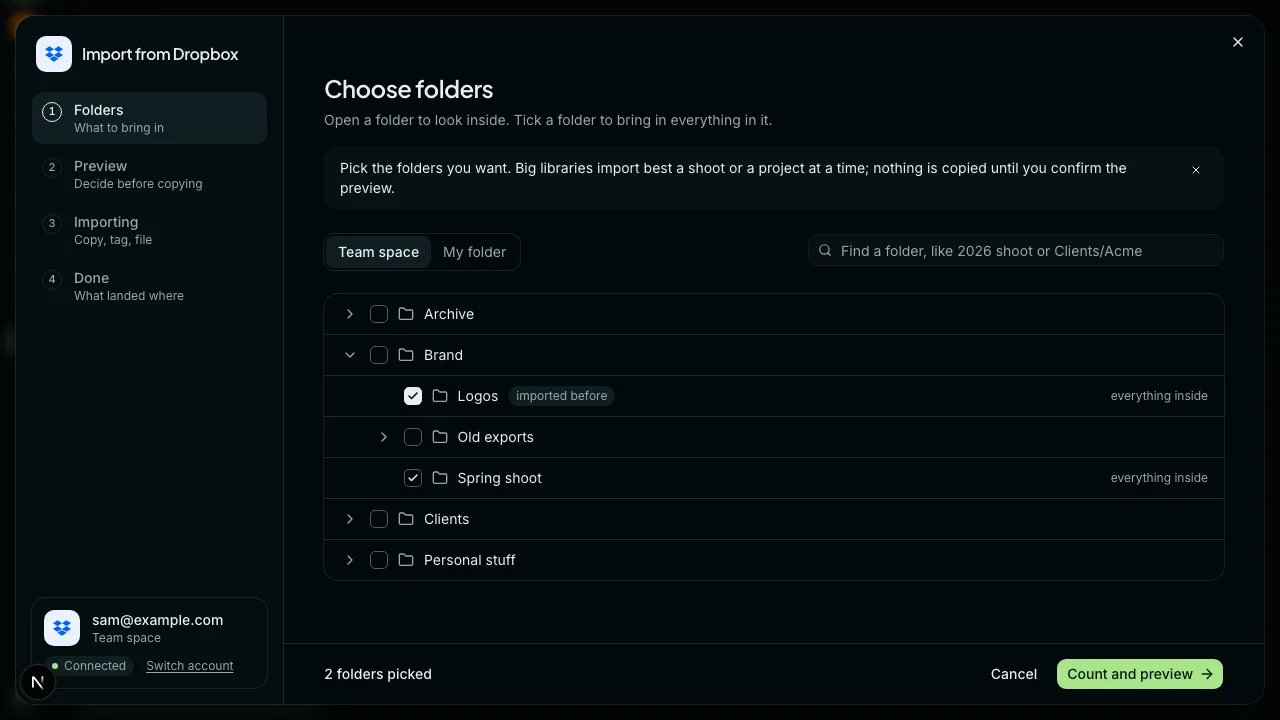
- Click the arrow beside a folder to open it. Each level loads the first time you open it.
- Tick a folder to take everything inside it. Its row reads everything inside and its subfolders fold away. Untick it to open it again and pick smaller folders instead.
- Find a folder by typing part of its name in the box at the top, such as
2026 shootorClients/Acme. Matching folders from anywhere in your Dropbox replace the list, each with its full path. Tick one to pick it, or click it to open it in the list, where it heads the list with a trail above it; All folders in the trail takes you back to the top. Clear the box to return to the list; your picks stay. A full path starting with/, followed by Enter, goes straight to that folder. - An imported before mark means files in that folder are already in your Library. Ticking it again is safe. See Import again without duplicates.
The footer counts your picks: 2 folders picked. Count and preview turns on once you’ve ticked at least one folder.
A note at the top, shown until you dismiss it, carries the one piece of advice worth following: pick the folders you want, and bring a big library in a shoot or a project at a time. Nothing is copied until you confirm the preview.
Only folders can be ticked. Loose files that sit at the top of your Dropbox, outside any folder, can’t be imported in this version. Put them in a folder in Dropbox first.
Team space or My folder
Section titled “Team space or My folder”If your Dropbox is a team account, a Team space | My folder switch appears above the list. Team space holds the folders your team shares. My folder holds your own. One import draws from one of them, so switching clears your selection.
Very full folders
Section titled “Very full folders”A level holding more than 2,000 items shows the first 2,000, with a line at the bottom: “Showing the first 2,000 items. Find a folder above to go further.” The search finds any folder by name, listed or not. It shows up to 25 matches; when there are more, type more of the name to narrow them.
Counting your folders
Section titled “Counting your folders”Click Count and preview and Cauldron counts only the folders you ticked. Each one reads counting… until its numbers are in, then shows its files and size. A couple of folders of a few hundred files count in seconds. When every folder is counted, the preview opens by itself.
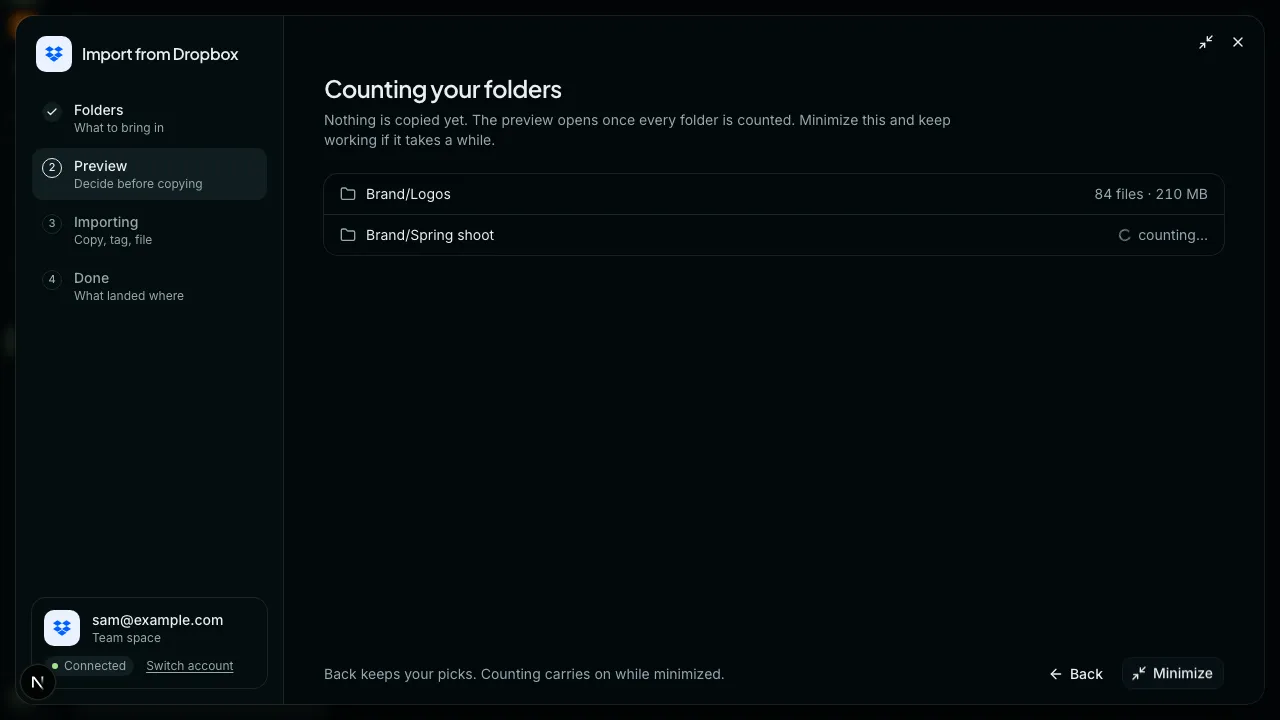
- Back returns to Choose folders with your picks kept. Counting carries on, and if you come back with the same picks it continues where it was.
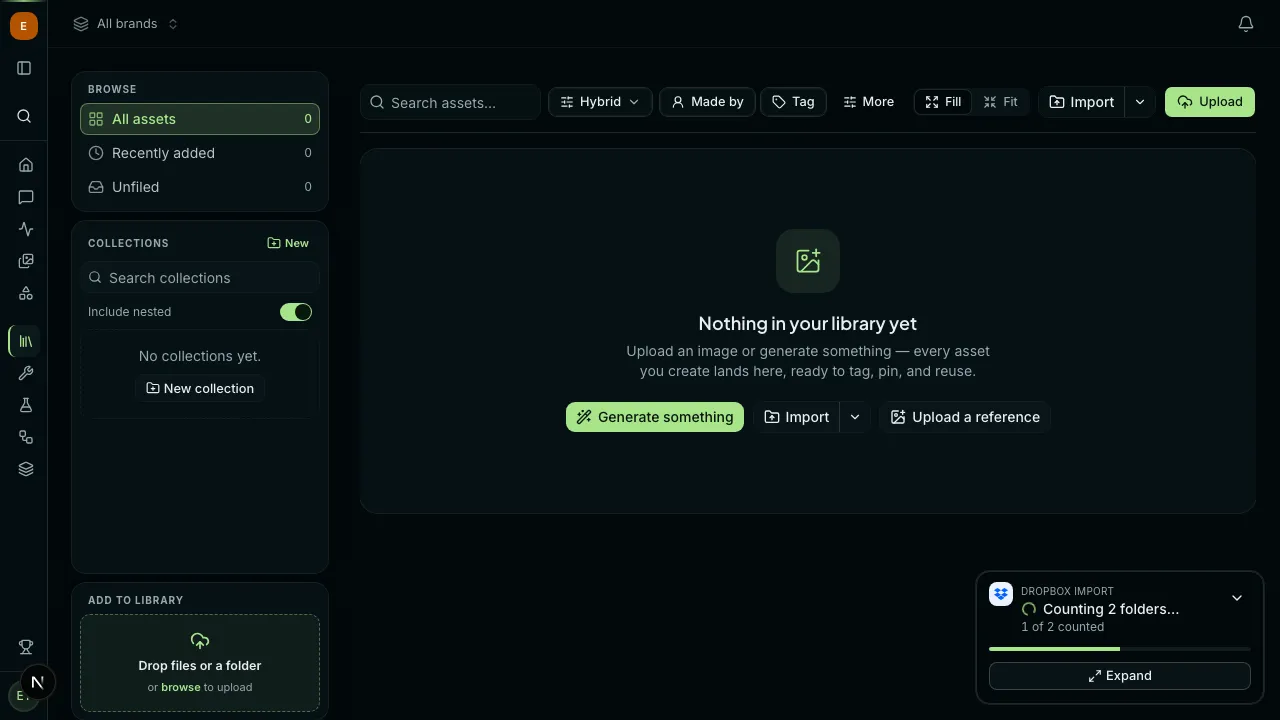
- Minimize shrinks the window to a card in the corner so you can keep working in the Library. The card reads Counting 2 folders… and how many are done. Click Expand to come back, or wait: the card reads Preview ready once the count finishes, and clicking Open lands you on the preview.
- Closing the window while it counts asks first: “Stop counting and close? Nothing has been copied.” Choose Keep counting or Stop and close.
If the folders you picked hold more than 100,000 files together, the step reads “Too many files to count in one go” and names the folder to untick. The folder itself reads too big. Go Back, untick it, and count again. Import that folder on its own, or pick the folders inside it.
Preview the import
Section titled “Preview the import”The preview is where every decision gets made. Nothing is copied until you click Import n files, and there is no review step afterwards. You can Minimize here too: the card in the corner reads Preview ready, and clicking Open brings the preview back exactly as you left it. Closing a preview you’ve changed asks first, since the choices on it would be lost.
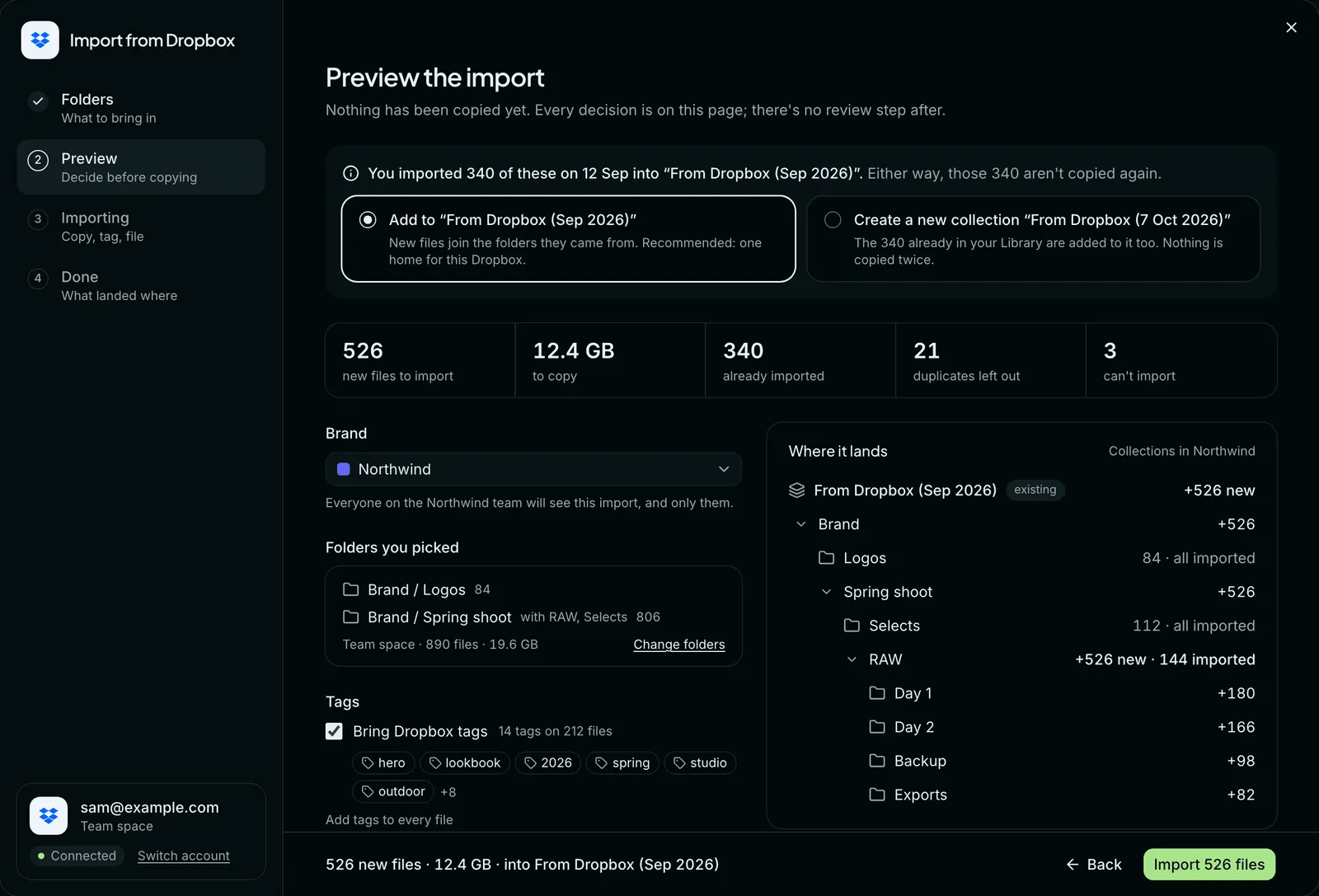
The row of totals across the top sums it up: new files to import, how much there is to copy, how many are already imported, how many duplicates are left out, and how many files Cauldron can’t import.
Choose the brand the files go into. The list only shows brands where you can add files. If you started on All brands, you pick the brand before Cauldron works out the plan. The line under it reminds you that everyone on that brand’s team will see the import.
Add to an earlier import, or a new collection
Section titled “Add to an earlier import, or a new collection”Every import has one parent collection that holds everything it brings in.
- First import from these folders. Cauldron suggests a name like “From Dropbox (Oct 2026)”. Change it in New collection if you like. The name can’t match a collection the brand already has at the top level.
- You’ve imported some of these files before. A notice at the top says how many, when, and into which collection. Choose one:
| Choice | What happens |
|---|---|
| Add to “earlier collection” | New files join the same collections as last time. This is the recommended choice: one home for this Dropbox |
| Create a new collection “name” | A separate parent collection is made. The files you already imported are added to it too, without being copied again |
- Bring Dropbox tags turns the tags on your Dropbox files into Cauldron tags. It’s on by default, and the preview shows how many tags are on how many files.
- Add tags to every file lets you type tags of your own. Press Enter after each one.
Tags are added to new files only. Files that were already imported keep the tags they have. Up to 20 Dropbox tags come in per file, the first 20 if a file has more. A tag longer than 64 characters is left out.
Folder depth
Section titled “Folder depth”This setting appears when the folders you picked go three or more levels deep. All levels recreates every folder. Pick fewer levels and the deeper folders are joined into one name, such as “RAW / Day 2”. The Where it lands tree updates as you change it, so you can see the result before you commit.
Duplicates
Section titled “Duplicates”If the folders you picked hold identical copies of the same file, the preview lists them under Duplicates in this selection.
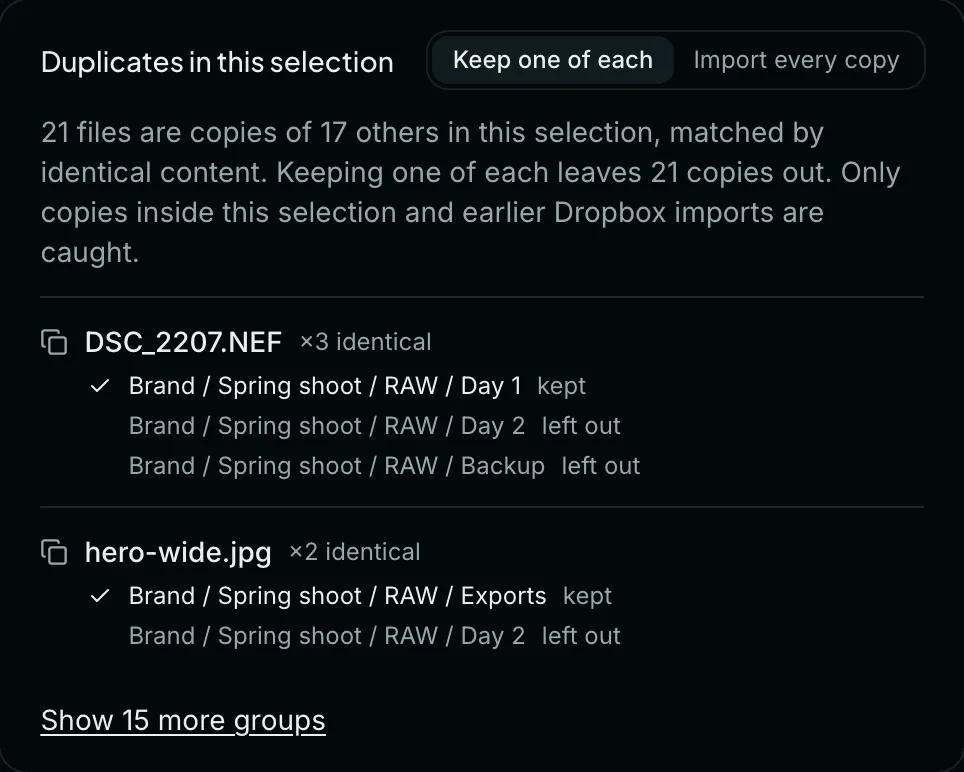
- Keep one of each imports one copy from each set and leaves the rest out. This is the default.
- Import every copy brings them all in. Identical files land side by side.
The panel says how many copies there are, for example “21 files are copies of 17 others in this selection, matched by identical content.” Copies are matched by content, not by name, so two different files that share a name are both imported. When one of each is kept, the copy that stays is chosen in this order:
- A copy you already imported, if there is one.
- Otherwise, the one with the shortest file name.
select-01.jpgwins overselect-01 copy.jpg. - If the names are the same length, the one in the shallowest folder.
The check covers the folders in this selection and your earlier Dropbox imports into the same brand. It doesn’t compare against files that reached the Library another way.
What can’t be imported
Section titled “What can’t be imported”Cauldron imports the same file types you can upload: PNG, JPEG, WebP, GIF, TIFF, RAW, PSD, MP4, MOV, and WebM. A file is left out when it’s another type or over the size limit for its type.
| File type | Size limit |
|---|---|
| Images (PNG, JPEG, WebP, GIF) | 50 MB |
| RAW and TIFF | 150 MB |
| PSD | 1 GB |
| Video (MP4, MOV, WebM) | 2 GB |
The Can’t import panel in the preview lists each of these files with its size, its folder, and the reason, such as “Unsupported type” or “Over 150 MB (RAW/TIFF limit)”. They stay in your Dropbox untouched, and the rest of the folder imports normally.
System files such as .DS_Store and Thumbs.db are left out too. They’re counted on one line and not listed.
Where files land
Section titled “Where files land”- One parent collection per import, in the brand you chose.
- Your folders, recreated beneath it. A file from
Brand / Spring shoot / Selectslands in a collection called Selects, inside Spring shoot, inside Brand. The path starts from the top of the Dropbox space you picked from, not from the folder you ticked. - Every file arrives as a draft. Approve files in the Library before anyone works from them. See The review process.
Imported files are shared with the brand’s team as soon as they land. They don’t start private the way new generations do.
While it imports
Section titled “While it imports”Click Import n files and the copy starts. Files go from Dropbox to Cauldron directly, not through your browser, so your connection speed doesn’t matter and you don’t need to stay.
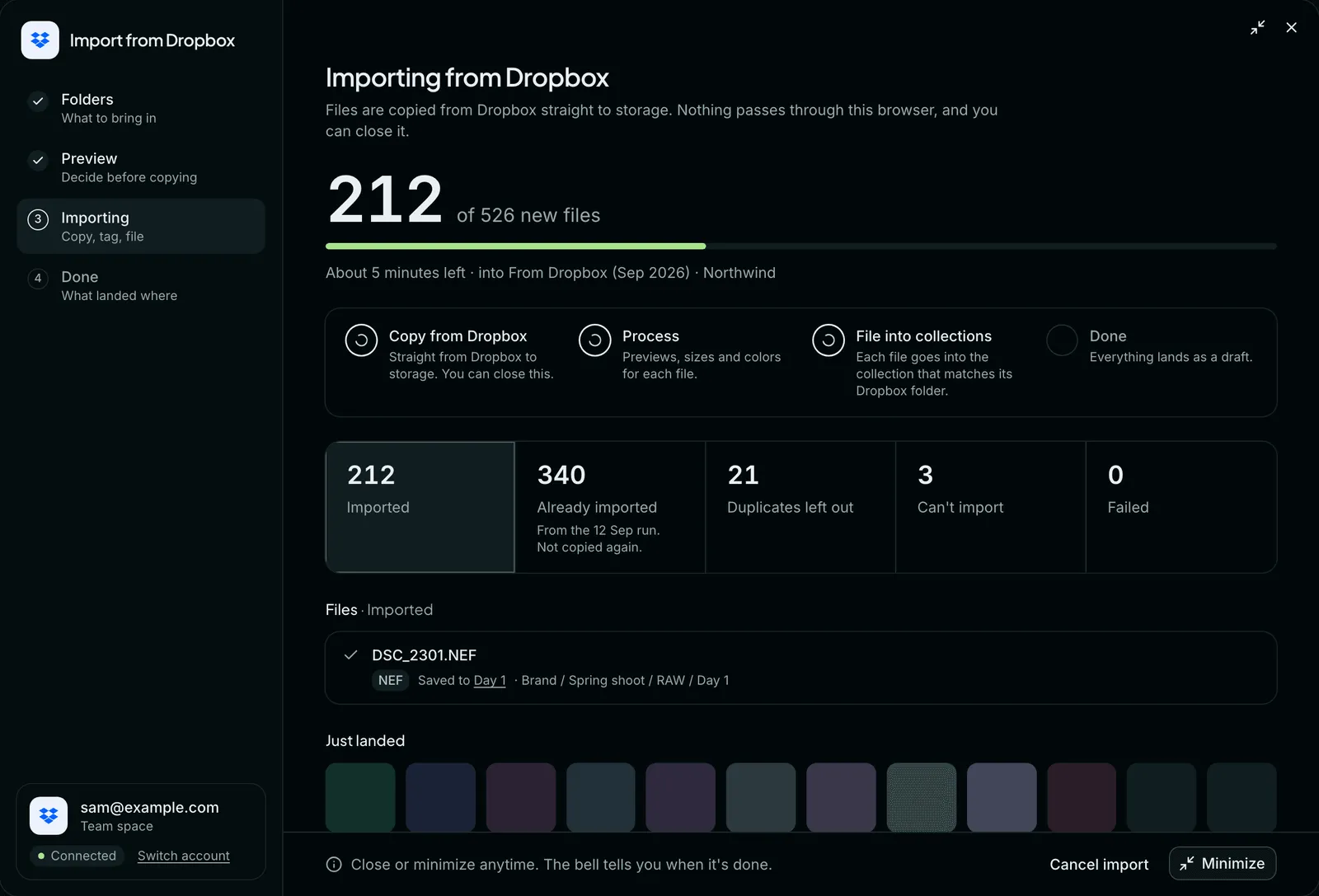
- You can close the window. The import keeps running. The bell tells you when it’s done, and also if it pauses.
- Minimize shrinks it to the same small card you can use while counting and on the preview. During an import the card shows the progress and the count so far. Click it to open the import again where you left off.
- Four stages show where the import is: Copy from Dropbox, Process, File into collections, and Done. Each one is marked as it starts and ticked as it finishes.
- The big number counts new files copied so far. Once there’s enough to go on, an estimate such as “About 5 minutes left” appears under the bar.
The file list
Section titled “The file list”The row of totals doubles as a set of filters. Click one to list the files behind it.
| Total | What it means |
|---|---|
| Imported | Copied into the Library. Each row links to the collection the file was saved to |
| Already imported | In the Library from an earlier import, so not copied again. Reads Added from earlier imports when you chose a new collection |
| Duplicates left out | Identical copies that were skipped |
| Can’t import | Left out, with the reason on each row |
| Failed | Tried and didn’t arrive, with the reason on each row |
| Waiting | Shown only when an import is paused. These files continue once you reconnect |
When it’s done
Section titled “When it’s done”The last step shows how many files landed, the same totals and file list, and a Where it landed tree of the collections that were filled.
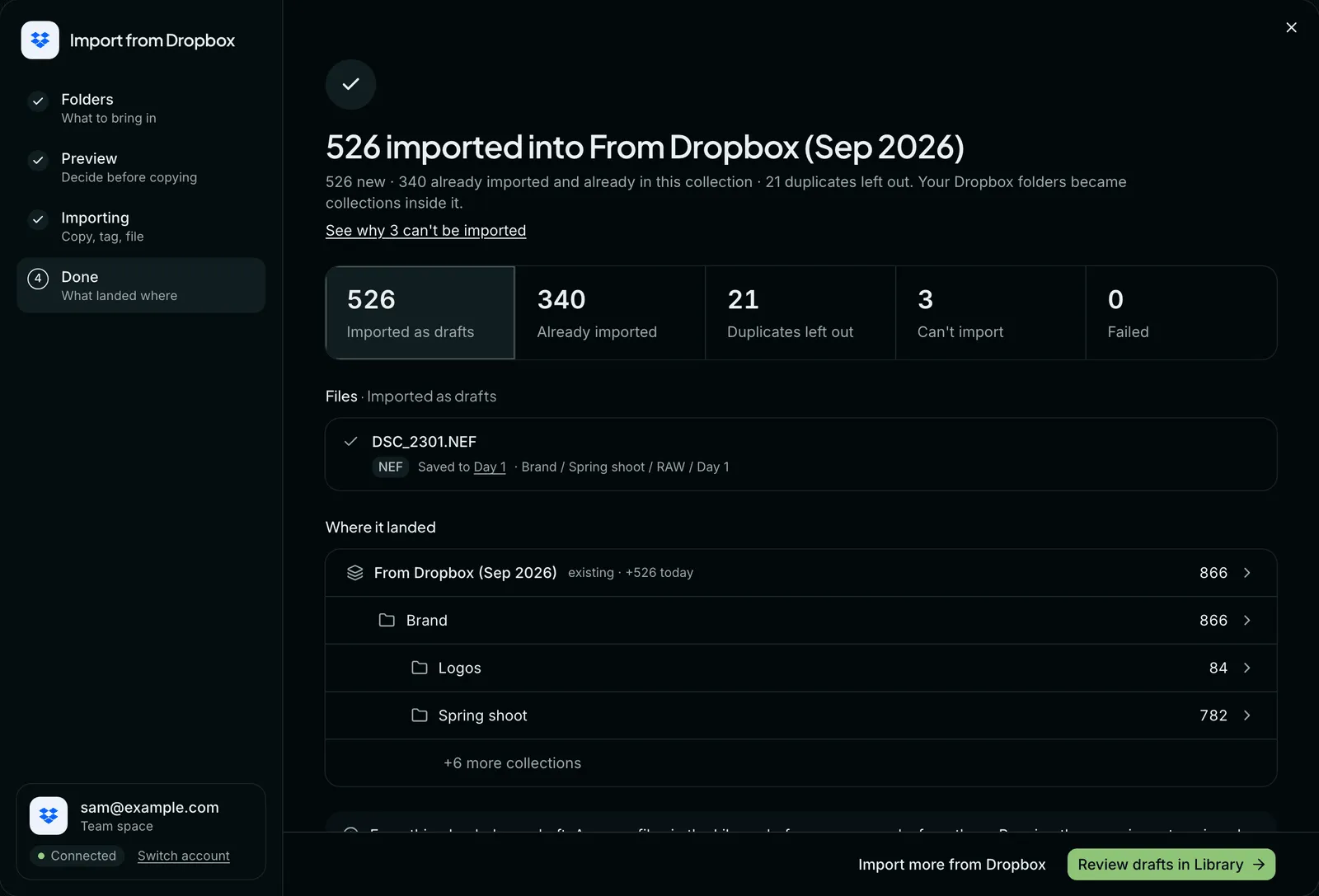
- Review drafts in Library opens the parent collection, filtered to drafts.
- Import more from Dropbox takes you back to Choose folders with a clean selection.
- Click any row in Where it landed to open that collection.
Import again without duplicates
Section titled “Import again without duplicates”You can run the same folders again whenever something new has been added in Dropbox. Files that were already imported into the brand are never copied a second time.
- Into the same collection (Add to …): only the new files are copied. They join the collections that match their folders.
- Into a new collection: the new files are copied, and the ones you already have are added to the new collection as well. They show under Added from earlier imports. There’s still only one of each file in your Library.
A file counts as already imported when it came from Dropbox into the same brand before and is still in that brand. A file you deleted is in the brand’s Archive, so it still counts as already imported and isn’t copied a second time: restore it from the Archive instead. Once it’s deleted permanently, importing it again copies it fresh. A Retired file also still counts as already imported.
Import with a connected AI tool
Section titled “Import with a connected AI tool”If you use Claude Code or another AI tool connected to Cauldron, you can ask it to run the import for you. It uses the same import as the app: the same preview, the same limits, and the same rule that nothing is copied twice.
- Connect your AI tool. Follow Connected AI tools. The Claude Code plugin includes a
migrateskill that knows the steps below. - Connect your Dropbox in Cauldron. An AI tool can’t do this for you. If you haven’t connected yet, it gives you a link to Library → Import → From Dropbox; connect there, then tell it you’re done.
- Ask for what you want. For example: “Import my Dropbox folder Product Shoots into the Acme brand.”
- Choose folders. It lists the top level of your Dropbox, opens the folders you ask about, and asks which ones to bring in. Only the folders you choose are counted; nothing else in your Dropbox is read.
- Read the preview. It tells you how many files will be imported, how many are already in Cauldron, which duplicates are left out, which files can’t be imported and why, and which collections they land in. Nothing is copied until you say yes.
- Let it run. The import runs in Cauldron, not on your computer, so you can close your AI tool. Ask “how is my Dropbox import going?” at any time, or watch the bell in Cauldron.
Files arrive as drafts, exactly as they do from the app. If some files fail, ask it to retry them.
When something goes wrong
Section titled “When something goes wrong”Dropbox access ended
Section titled “Dropbox access ended”Access ends when it’s revoked in Dropbox, for example by removing Cauldron from your connected apps there, or when it expires.
- Before importing. The window reads Dropbox access ended. Click Reconnect, approve access on Dropbox, and you return to Choose folders with your ticked folders kept. Nothing was imported.
- During an import. The import pauses. Files that already arrived stay in the Library, and the rest are marked Waiting.
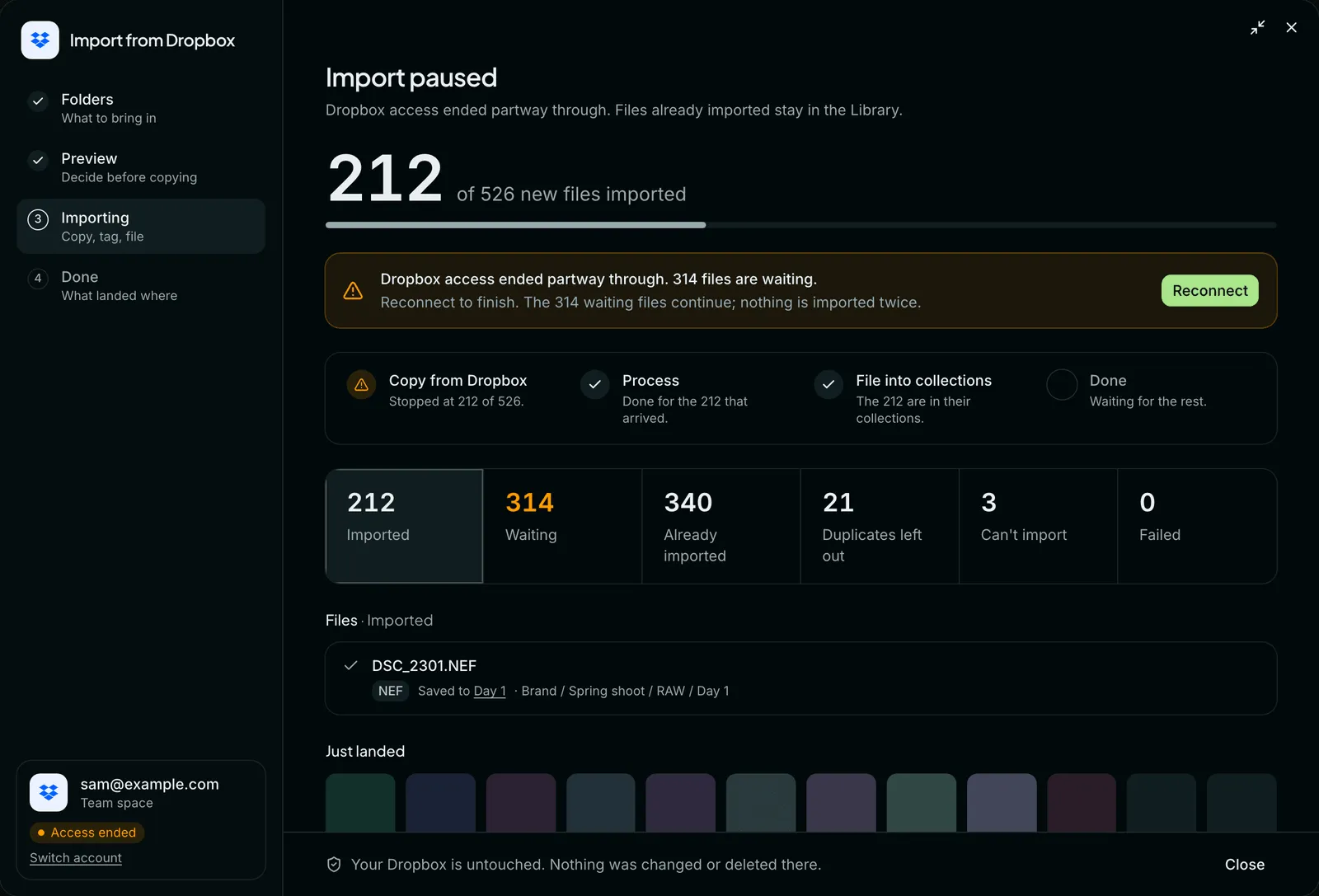
To finish a paused import, click Reconnect and approve access on Dropbox. The same import picks up with the waiting files. You don’t choose folders again, and nothing is imported twice.
Some files failed
Section titled “Some files failed”If a few files don’t arrive, the last step reads “n of m imported · x failed” and opens on the Failed list. Each file shows a plain reason.
| Reason | What to do |
|---|---|
| ”Changed in Dropbox since the preview” | The file was moved, renamed, or deleted after you previewed. Import its folder again |
| ”Grew past limit since the preview” | The file is now over the size limit for its type |
| ”Dropbox didn’t send this file. Retrying usually works.” | Click Retry n failed |
| ”Storage was full when this file arrived” | Free up space or change plan, then retry. See Billing |
| ”Couldn’t read this file” | The file may be damaged. Check that it opens in Dropbox |
| ”Dropbox access ended before this file arrived” | Reconnect, then retry |
Retry n failed tries only the files that failed. Everything that already arrived is left alone.
Canceling
Section titled “Canceling”To stop an import that’s running, click Cancel import, then Stop importing to confirm. Or pick Keep importing to carry on.
Files that were already imported stay in the Library as drafts. The rest aren’t copied. Your Dropbox is untouched either way. To bring in the remainder later, import the same folders again, and only the missing files are copied.
Disconnect or switch account
Section titled “Disconnect or switch account”Disconnect
Section titled “Disconnect”Open a brand’s Integrations tab, find your Dropbox under Sources · Into the Library, and click Disconnect. Studio owners and admins can also do this for their own connection under Settings → Integrations.
- A confirmation reads “Dropbox disconnected. Files you imported stay in the Library.”
- You can’t disconnect while one of your imports is running. Finish or cancel it first.
Disconnecting in Cauldron stops Cauldron from using the connection. A line stays on the page afterwards with the last step: to also remove Cauldron from your Dropbox, go to Dropbox → Settings → Connected apps.
Switch account
Section titled “Switch account”To import from a different Dropbox account, click Switch account. It’s on your Dropbox row on the Integrations tab, and in the bottom-left corner of the import window. Cauldron disconnects the current account and sends you to Dropbox to sign in with the other one. Because it disconnects first, canceling on Dropbox leaves you with no connection, and you’ll need to connect again.
You can have one Dropbox connected per studio at a time. Like disconnecting, switching waits until your running import has finished or been canceled.
Limits
Section titled “Limits”| Limit | Amount |
|---|---|
| New files copied in one import | 5,000 |
| Files selected in one import, including ones that won’t be copied | 20,000 |
| Files in the folders you pick, counted together | 100,000 |
| Imports running at once, per person | 2 |
| Folder levels recreated as collections | 8. Deeper folders are joined into the last level’s name |
| Dropbox tags brought in per file | The first 20 |
| Tags you can add to every file | 20 |
More than 5,000 files to copy? The preview reads “One import copies up to 5,000 files” and Import stays off. Untick some folders, import, then come back for the rest. Files that are already imported don’t count toward the 5,000, so you can also tick the same folders again and carry on from where the last import stopped.
More than 20,000 files selected? The preview reads “One import can look at up to 20,000 files. Untick some folders and import the rest next.” This one counts every file in the folders you ticked, including ones that won’t be copied.
More than 100,000 files to count? The counting step stops and names the folder to untick. See Counting your folders. Only the folders you tick are counted, so the size of the rest of your Dropbox doesn’t matter.
Troubleshooting
Section titled “Troubleshooting”“Reading your Dropbox…” doesn’t go away. It shows while a folder level loads, and normally clears within a second or two. If it turns into “Couldn’t read this folder”, click Try again. An import that has already started doesn’t depend on this window: it keeps running if you close it, and the bell tells you when it’s done.
“There’s no folder at that path in this Dropbox.” Check the path you typed against Dropbox. It starts from the top of the space you’re in, Team space or My folder, so switch spaces if the folder lives in the other one.
A folder reads “too big”. The folders you picked hold more than 100,000 files together. The counting step names the folder to untick: go Back, untick it, and count again. Import it on its own, or pick the folders inside it.
I reconnected with a different Dropbox account. An import that was paused or unfinished can’t continue, because its remaining files belong to the first account. Those files show as failed with “Your Dropbox account changed since this import started.” Files that had already arrived stay in the Library. To get the rest, start a new import and pick the folders from the account you’re now connected to, or use Switch account to go back to the first one and import them again.
My access to the brand changed during an import. If you’re removed from a brand, or your role there no longer lets you add files, the import stops. The files still to come show as failed with “You no longer have access to add files to this brand.” Files that had already arrived stay in the brand’s Library. Ask a brand manager for Creator access, then start the import again; nothing is copied twice.
“Couldn’t finish counting these folders.” Click Try again. If the access ended notice appears instead, reconnect.
“That folder list was out of date, so we read your Dropbox again.” The counts for your folders are kept for 24 hours. If you come back to an older preview, Cauldron recounts the same folders and keeps your selection.
“Two imports are already running.” You can run two imports at once. Start the next one when one of them finishes.
“You’ve started a lot of imports this hour.” There’s a cap on how many imports you can start in an hour. The message says how many minutes to wait.
“Nothing new to import.” Every file in the folders you picked is already imported, a duplicate, or a type Cauldron can’t import. The preview’s panels show which.
“Not enough storage left for this import.” Free up space or move to a bigger plan, then start the import again. See Billing.
I don’t see From Dropbox in the Import menu. Guests don’t have it.